

 図書館の開館予定(「私はロボットではありません」が繰り返し表示される場合は、Webブラウザ Google Chrome(グーグルクローム) にてご利用ください。)
 ・【貸出冊数/貸出期間】学部生:5冊/2週間, 大学院生:10冊/1カ月, 教職員:15冊/2カ月
・視覚障害者等へのサービスについてはこちら:220924平成国際大学図書館における視覚障害者等へのサービスについて.pdf
→ 本学の学生で、視覚障害等の理由で読書が難しい方は、国立国会図書館の「視覚障害者等用データ送信サービス」を利用することができます。
・平成国際大学の紀要等は 平成国際大学リポジトリ からも閲覧することができます。
※ 執筆者が非公開を希望した文献については本文を掲載いたしません。
・埼玉県大学・短期大学図書館協議会SALA加盟館による相互来館利用情報はこちら:240106【平成国際大学図書館】身分証受付館情報.pdf
→ 本学の学生で、視覚障害等の理由で読書が難しい方は、国立国会図書館の「視覚障害者等用データ送信サービス」を利用することができます。
・平成国際大学の紀要等は 平成国際大学リポジトリ からも閲覧することができます。
※ 執筆者が非公開を希望した文献については本文を掲載いたしません。
・埼玉県大学・短期大学図書館協議会SALA加盟館による相互来館利用情報はこちら:240106【平成国際大学図書館】身分証受付館情報.pdf
・「埼玉県大学・短期大学図書館協議会(通称SALA)」加盟館による相互来館利用の御案内
1.学生証/職員証を持参・提示することにより、SALA 加盟館を訪問利用することができます。
2.図書館によって利用できるサービス・留意事項等が異なるので、必ず事前に訪問先の情報を見て、詳細を確認してください。
3.特殊な資料を利用する際には、図書館を通じて、事前の問い合わせが必要です。
1.学生証/職員証を持参・提示することにより、SALA 加盟館を訪問利用することができます。
2.図書館によって利用できるサービス・留意事項等が異なるので、必ず事前に訪問先の情報を見て、詳細を確認してください。
3.特殊な資料を利用する際には、図書館を通じて、事前の問い合わせが必要です。
・情報デザイン学部用オンラインジャーナル(学内からご利用いただけます。)
Annals of the Institute of Statistical Mathematics
Annals of Statistics
Journal of American Statistical Association
Journal of Marketing
Journal of Marketing Research
Annals of the Institute of Statistical Mathematics
Annals of Statistics
Journal of American Statistical Association
Journal of Marketing
Journal of Marketing Research
日本語 | English
FAQ
FAQ(English)
How do I register a review?
カテゴリ:
5.1. Personal Services
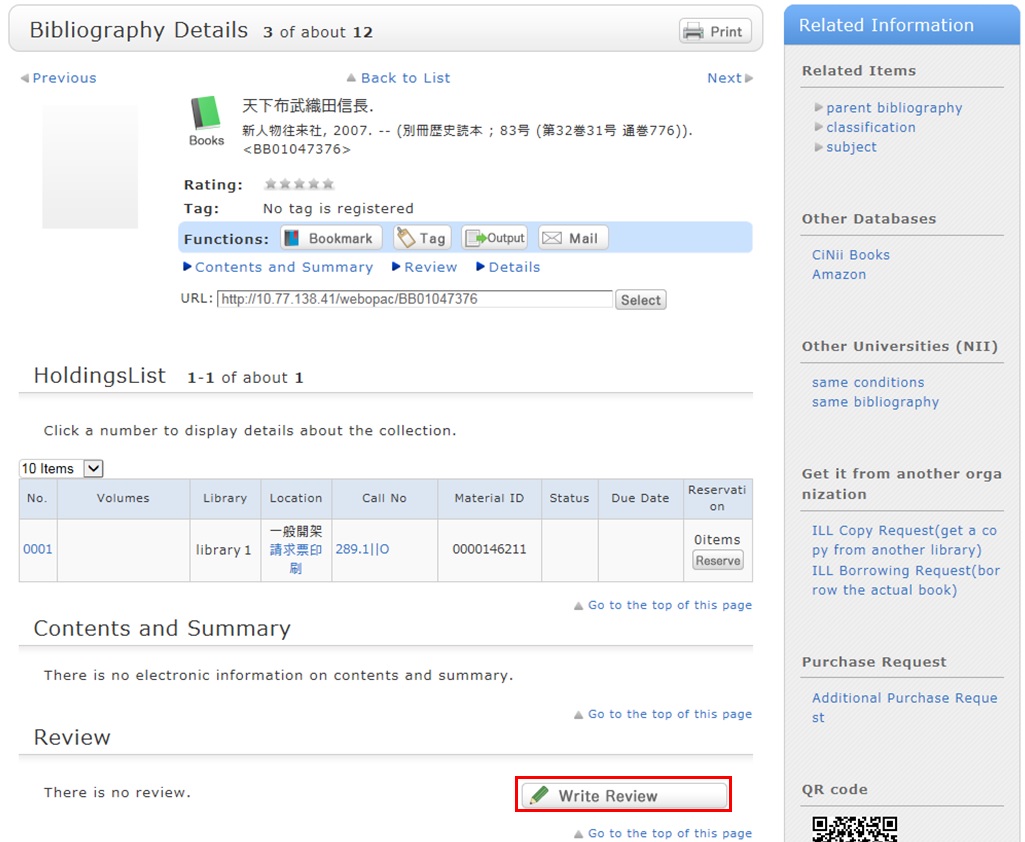
Review entry
- Confirm the bibliography of your written review, and decide the number of ★(1 to 5) for an evaluation. Then, enter the review title and text, and click [Submit].
You cannot use HTML tags and machine-dependent characters. - Confirm what you are registering. When there is no problem, click the [Submit] button. To start over with the entry, click [Edit].
- When your review is published, the contributor's nickname, date, section affiliation, library affiliation, and user type are posted in addition to the review title and text.
- If you want to set or change your nickname, select [OPAC] -> [Your Library Record] -> [Personal Info.]. Confirm the name displayed in the "Handle" column.
To correct the name, click [Personal Info.], and enter your new handle name.
Review evaluation
You can enter comments about the review, add reference information, and report inappropriate reviews.
From the review details screen, click any of the following to go to the input screen:
- Was this review helpful? Yes? No?
- Report this review as inappropriate
- Write comment on this review

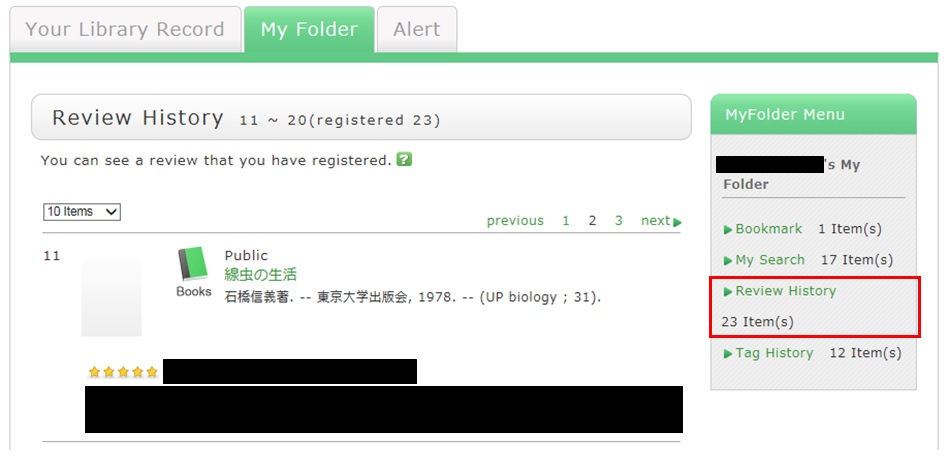
How do I check my written reviews?
カテゴリ:
5.1. Personal Services
How do I register a tag?
カテゴリ:
5.1. Personal Services
 .
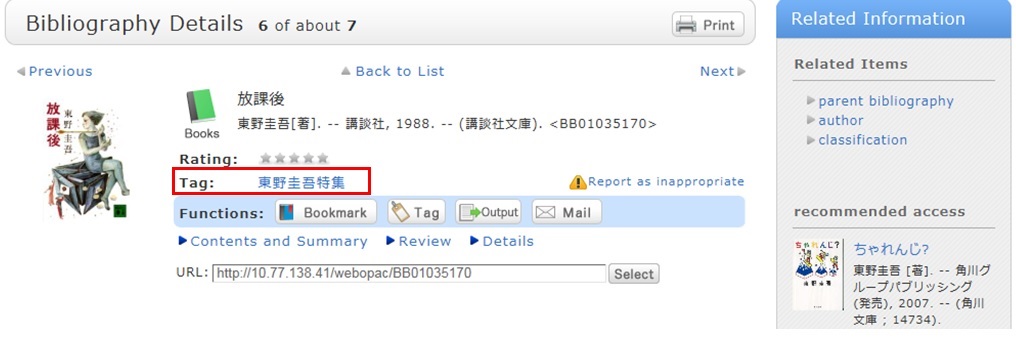
.Method 2) In the bibliography details screen, click
.However, tags such as those used in a list of the specified books in a syllabus (e.g., all university, 2012 first term) cannot be registered.
Referring to other tags
By attaching the same tags to multiple bibliographies, you can batch search them.
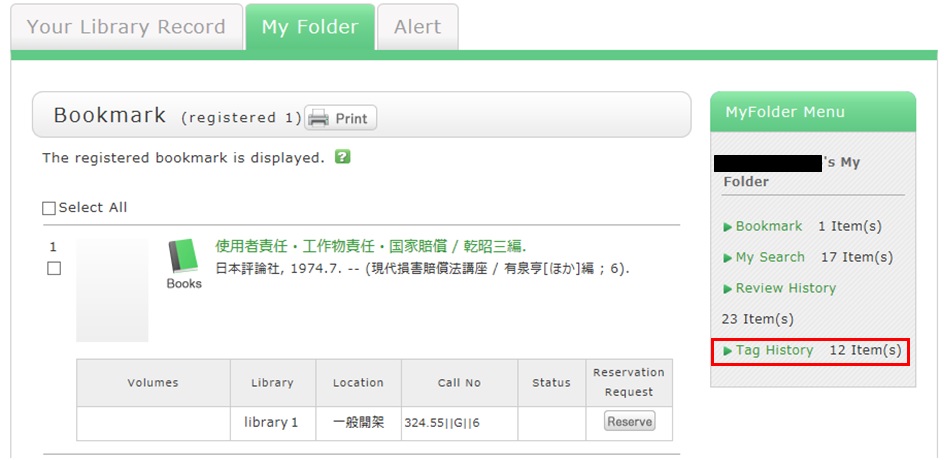
Checking the tag history
You can check the tag history from [OPAC] -> [My Folder] -> [Tag History], which is on the right menu.
What if a tag is inappropriate?
If you think that a tag is inappropriate or does not match the material, please contact us.
Click [Report as inappropriate] behind "Register tag" on the bibliography details screen to register your report.
How do I check the tags that I attached?
カテゴリ:
5.1. Personal Services
I have books used in lectures and laboratories. I want to share them with friends. Is there a good way to do this?
カテゴリ:
5.1. Personal Services
For example, suppose you add a tag such as the following: "This was helpful in _____ lecture." or "A must read for _____ laboratory." Then, anyone can bring up the same list of materials when searching tags.
You can register tags from both the list screen and details screen.
利用者サービス
携帯電話用Web-OPAC
携帯電話用Web-OPACは
こちらのQRコードからどうぞ!
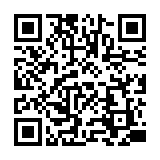
URL:
https://opac.std.cloud.iliswave.jp/iwjs0011opc/cattab.do