


FAQ
FAQ(English)
The pop-up blocker appears when I reserve or copy materials or apply for an inter-library loan.
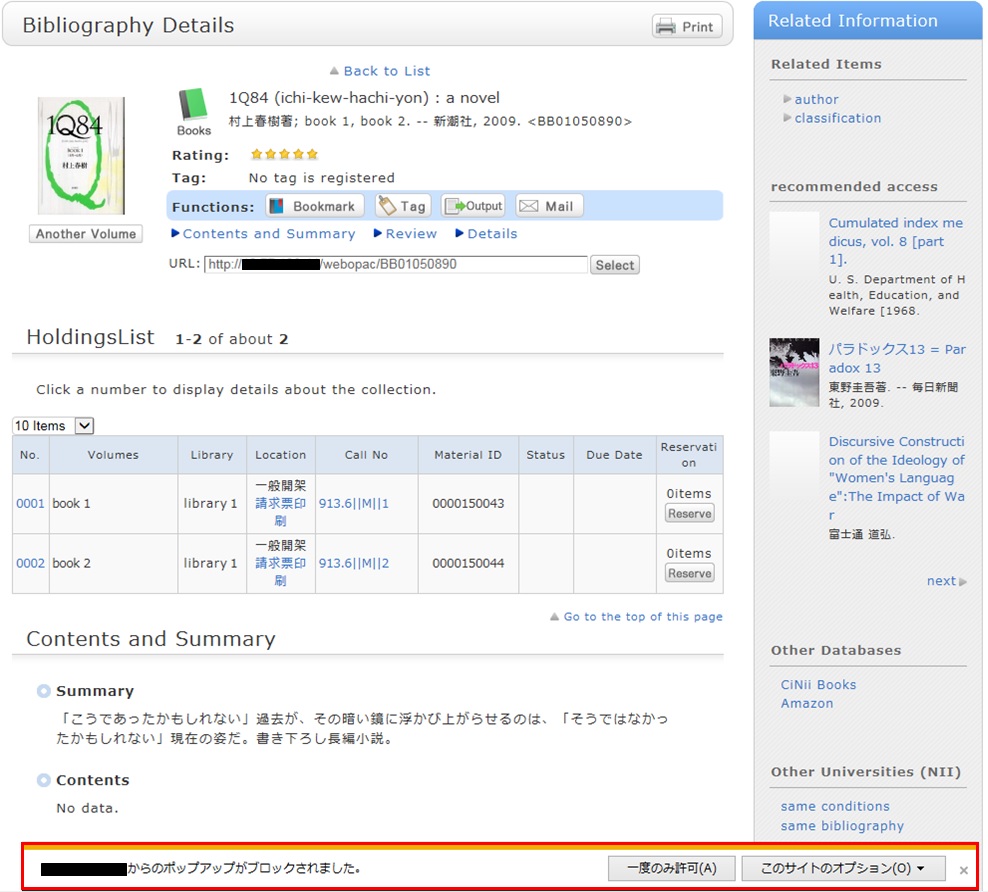
* The screenshot is from Internet Explorer 9. The pop-up blocker appears in different locations depending on your browser and version. For details, see the help of the respective browser.
The pop-up screen is used for all applications from OPAC, such as for a reservation, ILL, or new arrival alert. Therefore, enable pop-ups by using the following method. (The descriptions apply to Internet Explorer 9.)
- Temporarily allowing the pop-up blocker
Click [Allow once] on the pop-up blocker notification bar.
(Depending on the browser version, select "Temporarily Allow Pop-ups.")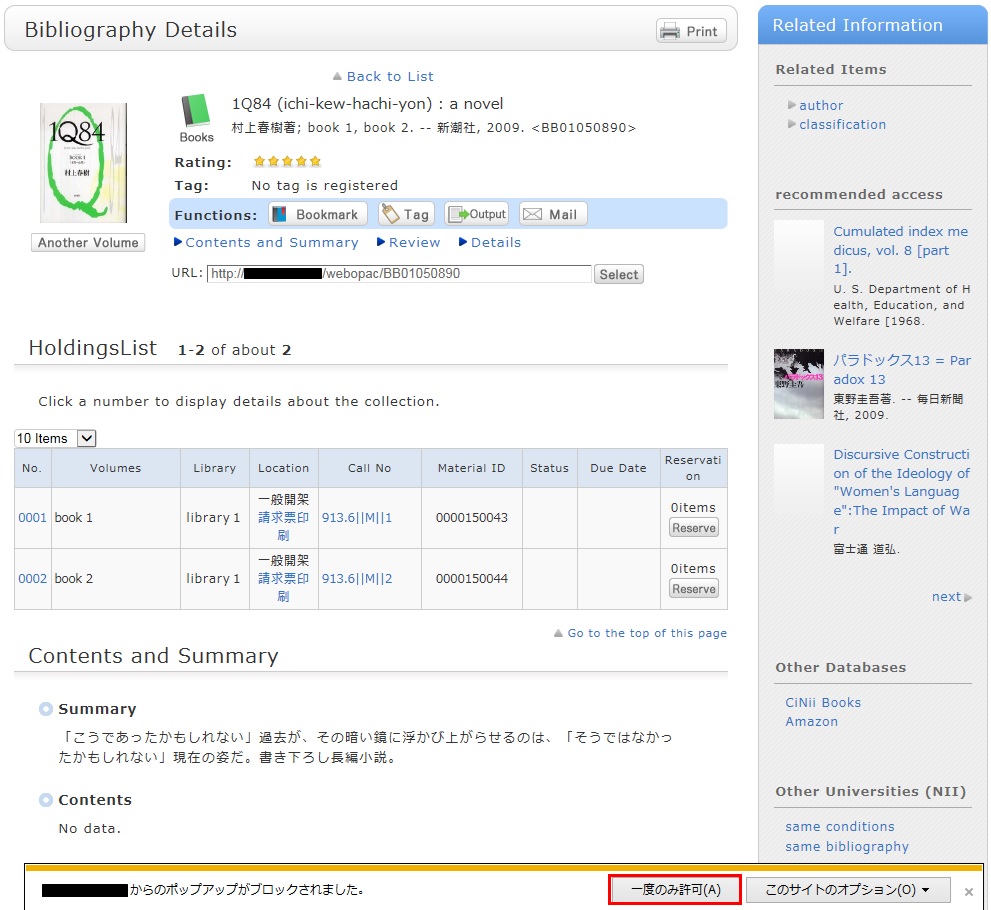
* However, with this method, if the browser is closed once, the pop-up blocker is enabled when the browser is started again. Consequently, the same work will need to be repeated to apply for a reservation or ILL in OPAC.
- Always allowing the pop-up blocker
Click "Always allow" from [Options for this site] on the pop-up blocker notification bar.
(Depending on the browser version, click the notification bar, and select "Always Allow Pop-ups from This Site.")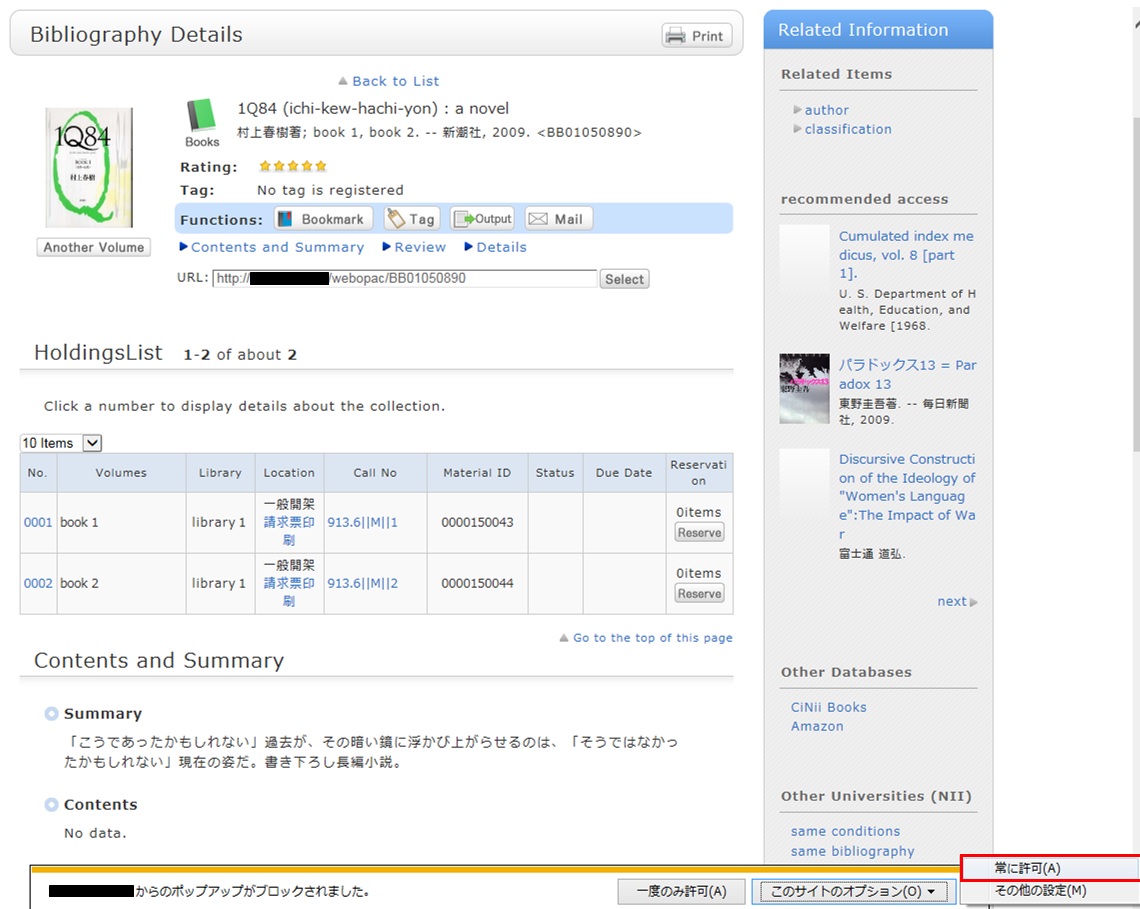
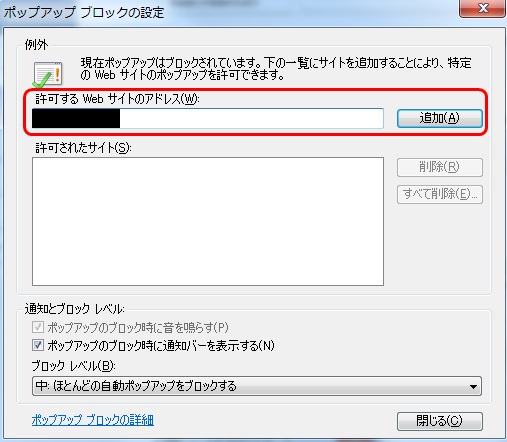
* Safari users are requested to go to Security in the browser settings menu to confirm that no check mark is entered in the "Block Pop-up Windows" check box.
* If you are a Google Chrome user, click here.
After enabling pop-ups as described above, repeat the procedure for your application from the beginning.
日本語 | English
情報検索
 よく使用される
検索サイト
電子書籍検索
Cinii-Books
(大学図書館の本をさがす)
国立国会図書館サーチ
Cinii Research
(日本の論文や研究データをさがす)
J-STAGE
(論文をさがす)
福岡県内公共図書館横断検索

■ Archiv fuer
Musikwissenschaft
■ Early Music
■ Music & Letters
■ International Journal of
Music Education
■ Music Education Research
大学WiFiに接続し閲覧
してください


利用者サービス
開館カレンダー
| 日 | 月 | 火 | 水 | 木 | 金 | 土 |
30 | 31 | 1 | 2 | 3 | 4 | 5 |
6 | 7 | 8 | 9 | 10 | 11 | 12 |
13 | 14 | 15 | 16 | 17 | 18 | 19 |
20 | 21 | 22 | 23 | 24 | 25 | 26 |
27 | 28 | 29 | 30 | 1 | 2 | 3 |
-
9:00ー17:00
-
休館
Web-OPAC(蔵書検索) QRコード
Web-OPACのQRコードはこちら
URL→https://opac.std.cloud.iliswave.jp/iwjs0001opc/cattab.do
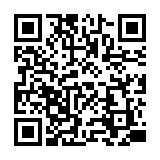
携帯電話やスマートフォンからの蔵書検索はこちらを登録しておくと便利です。
関連リンク